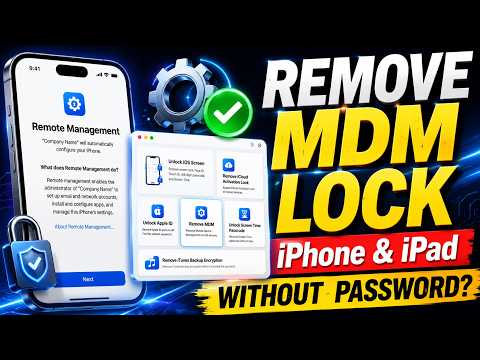

Remove MDM or bypass iCloud activation lock on iPhone/iPad using MagFone iPhone Unlocker:
🔍 What Is MDM Lock and Why Does It Happen?
MDM stands for Mobile Device Management – it’s a protocol that allows organizations (schools, companies, government agencies) to remotely manage and control Apple devices . These profiles are installed on iPhones and iPads to:
-
Enforce security policies
-
Restrict access to certain apps or features
-
Remotely configure Wi-Fi, email, and other settings
-
Protect sensitive company or school data
Common Scenarios Where MDM Becomes a Problem:
| Scenario | Why It Happens |
|---|---|
| Second-hand purchase | You bought a used iPhone/iPad, but it’s still linked to the previous owner’s organization |
| Left a job or school | Your former employer or school didn’t remove the MDM profile before you left |
| Forgotten credentials | You don’t have the admin username and password to remove the profile |
| Device still supervised | The device is enrolled in Apple Business Manager or Apple School Manager |
MDM restrictions can block access to the camera, App Store, iCloud, and other core functions, making the device frustrating to use .
📱 How to Check If Your iPhone/iPad Has an MDM Lock
Before attempting removal, verify if your device is supervised:
-
Open Settings on your iPhone/iPad
-
Scroll down and tap General
-
Look for VPN & Device Management (or Profile & Device Management)
-
If you see a profile listed here – especially with an organization name – your device is under MDM supervision
If this option is not present, your device is likely free from MDM restrictions.
✅ Legitimate Method: Remove MDM Via Settings (If You Have Credentials)
If you have the admin credentials or know the MDM profile password, this is the easiest, safest, and free method:
| Step | Action |
|---|---|
| 1 | Go to Settings > General > VPN & Device Management |
| 2 | Tap on the MDM Profile |
| 3 | Select Remove Management (or Remove Profile) |
| 4 | Enter the admin password or credentials when prompted |
| 5 | The profile will be removed, and restrictions will be lifted |
Advantages: No data loss, no cost, no technical skills required .
Disadvantage: Only works if you have the necessary credentials.
🛠️ Third-Party Tools to Bypass MDM Without a Password
If you don’t have the credentials, third-party tools are your main option. Here are the leading solutions for 2026:
Tool 1: Dr.Fone – Screen Unlock (iOS)
Dr.Fone offers a dedicated Remove MDM feature that bypasses the lock without requiring a password and without jailbreaking the device .
Key Features:
-
✅ No password needed
-
✅ No jailbreak required
-
✅ No data loss during the process
-
✅ Supports all iPhone/iPad models and the latest iOS versions
-
✅ Also removes iCloud Activation Lock, screen passcodes, and Apple ID locks
How It Works:
-
Download and install Dr.Fone on your Windows PC or Mac
-
Select the Screen Unlock module
-
Choose Unlock MDM iPhone
-
Click Bypass MDM
-
Connect your device via USB and follow the on-screen instructions
-
The process takes only a few minutes and your device will restart with the MDM profile removed
Pros:
-
No data loss
-
Simple 3-step process
-
Works on all iOS versions, including iOS 26
-
Cross-platform (Windows and Mac)
Cons:
-
Paid software (free trial has limited functionality)
-
Full MDM bypass feature requires a license purchase
Tool 2: AnyUnlock – iPhone Password Unlocker
AnyUnlock provides both Bypass MDM and Remove MDM modes to deal with different MDM scenarios .
Two Supervision Ways:
| Mode | What It Does | Best For |
|---|---|---|
| Bypass MDM | Temporarily bypasses Remote Management screen to access the device | When you’re stuck on the Remote Management login screen |
| Remove MDM | Permanently removes the local management profile from the device | If you have access to the device but want to remove restrictions without losing data |
Steps to Bypass MDM:
-
Download and install AnyUnlock on your computer
-
Launch the software and select Bypass MDM mode
-
Connect your iPhone/iPad via USB cable
-
Ensure your device is on the Remote Management screen
-
Click Bypass Now and wait for the process to complete
Pros:
-
Supports all iOS devices from iPhone 3G to iPhone 17
-
Compatible with all iOS versions from iOS 5 and above
-
Simple, user-friendly interface
Cons:
-
Paid software (activated version required for MDM bypass)
-
Bypass mode requires device to be on the Remote Management screen
Tool 3: LIBRE-HACKTIVATOR_iOS_12-16 (Open-Source)
For users comfortable with open-source tools and older devices, LIBRE-HACKTIVATOR is a free option that bypasses MDM restrictions, iCloud locks, and activation locks .
Key Features:
-
✅ Open-source and free
-
✅ Bypasses MDM, activation lock, and iCloud lock
-
✅ Automates complex jailbreak and unlock processes
-
✅ Works on A8 to A11 chip devices (iPhone 6s, 7, 8, X, and certain iPads)
-
✅ Supports iOS 12 through 16
Device Compatibility:
-
iPhone 6s, SE (1st gen), 7, 8, X
-
iPad Air 2, iPad 5th/6th generation
-
Only devices with A8–A11 chips are supported
How It Works:
-
Download the tool from the official GitHub repository
-
Install iTunes (for drivers) on your Windows PC
-
Connect your device via USB
-
Run the tool as Administrator
-
Follow the on-screen instructions (may require entering DFU mode)
-
The tool uses the checkm8 vulnerability with checkra1n or palera1n jailbreak to bypass restrictions
Important Limitations:
-
Does NOT work on newer devices with A12 chips or above (iPhone XR, XS, 11, 12, 13, 14, 15, 16)
-
Only supports iOS 12–16 (not iOS 17+)
-
Requires running as Administrator on Windows 10/11
Tool 4: MDMPatcher-Enhanced (macOS)
MDMPatcher Enhanced is a macOS tool designed for educational and personal device recovery. It removes MDM profiles without jailbreaking the device .
Key Features:
-
✅ No jailbreak required
-
✅ No firmware modifications
-
✅ Uses public interfaces (AFC, plist editing, USB restore flows)
-
✅ Supports iOS 15–18.5+
-
✅ Works on iPhone 5s to iPhone 16 and all current iPads
How It Works:
-
Download the correct IPSW file for your device from ipsw.me
-
Put your device into recovery mode
-
Hold the OPTION key and click Update or Restore in Finder/iTunes
-
Select the IPSW file you downloaded
-
After restoration, follow setup until the Wi-Fi screen
-
Do NOT connect to any network
-
Open MDMPatcher and click PATCH
Pros:
-
No jailbreak required
-
No data loss (preserves your information)
-
Legal for personal device recovery (used with consent)
-
macOS compatible
Cons:
-
Requires downloading a correct IPSW file
-
Only for macOS users
-
Intended for devices you legally own – using on corporate devices without permission is prohibited
⚠️ Method Comparison – Which Tool Should You Choose?
| Tool/Method | Cost | Password Needed? | Data Loss? | Jailbreak? | Compatibility |
|---|---|---|---|---|---|
| Settings removal | Free | ✅ Yes | ❌ No | ❌ No | All devices |
| Dr.Fone | Paid | ❌ No | ❌ No | ❌ No | All iOS devices, all iOS versions |
| AnyUnlock | Paid | ❌ No | ❌ No | ❌ No | iOS 5+, all iPhone models |
| LIBRE-HACKTIVATOR | Free | ❌ No | ⚠️ Possible | ✅ Yes | A8–A11, iOS 12–16 |
| MDMPatcher Enhanced | Free | ❌ No | ❌ No | ❌ No | iOS 15–18.5+, iPhone 5s–16 |
| Factory Reset | Free | Depends | ✅ Yes | ❌ No | All devices (MDM may return) |
🚨 What Doesn’t Work – Common Myths
-
❌ Factory reset alone – On supervised devices, MDM returns when you reconnect to the internet
-
❌ Free YouTube “tricks” – These are usually scams or outdated
-
❌ DNS spoofing – Doesn’t remove MDM permanently
-
❌ Jailbreak alone – Jailbreaking grants root access but doesn’t automatically remove MDM profiles
⚖️ Legal and Safety Considerations
-
✅ You can legally bypass MDM if you own the device
-
⚠️ If the device belongs to a company or school, you need permission before removing the profile – doing so might violate their policies
-
⚠️ Jailbreaking voids your Apple warranty and exposes your device to security risks
-
⚠️ Never share your Apple ID password with third-party tools – reputable tools don’t require it
📋 Summary – 2026 Updated Recommendations
| Your Situation | Recommended Solution |
|---|---|
| You have admin credentials | Use Settings > General > VPN & Device Management (free & safe) |
| No password, all iOS devices | Dr.Fone – Screen Unlock (paid, no jailbreak, no data loss) |
| No password, want free option (older devices) | LIBRE-HACKTIVATOR (free, supports A8–A11, iOS 12–16) |
| No password, no jailbreak (macOS) | MDMPatcher Enhanced (free, iOS 15–18.5+, no data loss) |
| You’re stuck on Remote Management screen | AnyUnlock – Bypass MDM (paid, quick bypass) |
Keyword:-
how to remove mdm from ipad remove device management from iphone mdm removal iphone mdm remove mdm iphone ipad mdm removal ios mdm bypass iphone activation lock,icloud activation lock activation lock iphone icloud lock iphone unlock guide iphone tips ipad tutorial apple device management remote management remove remote management iphone setup mobile device management.